One folder per broadcast
While a stream is live, the recorder saves it in parts. When the broadcast
ends, the parts are joined into one vod.mp4 and removed. Each broadcast gets
its own folder:
Downloads/recordings/twitch/lanternfox_tv/2026-11-24_19-02-11/vod.mp4The layout is a setting: {platform}/{username}/{datetime} by default, with
{date}, {time}, {year} and others to build your own, per streamer if you
like. If you’d rather have files of a fixed size or length, splitting writes
vod1.mp4, vod2.mp4 and so on, at a size such as 2 GB or a length such as
two hours.
Because they’re plain files in plain folders, your recordings outlive the app. Back them up, move them or open them in an editor as you would any video.
Find any broadcast
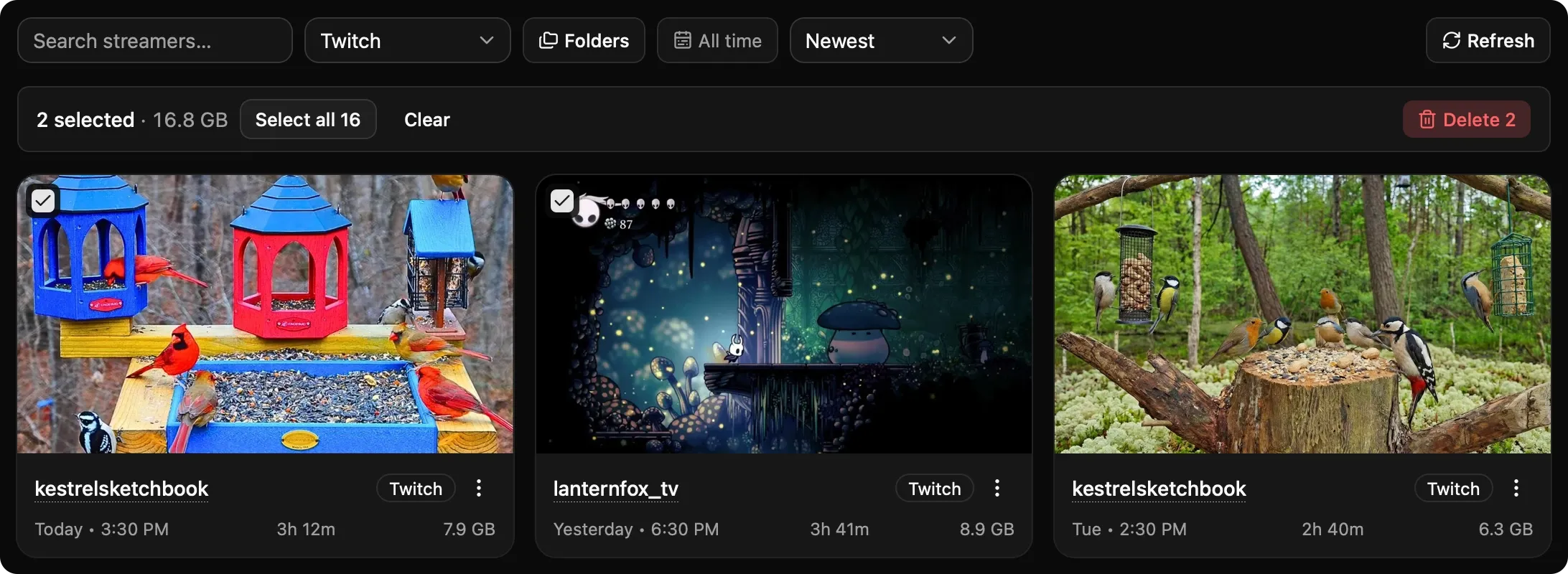
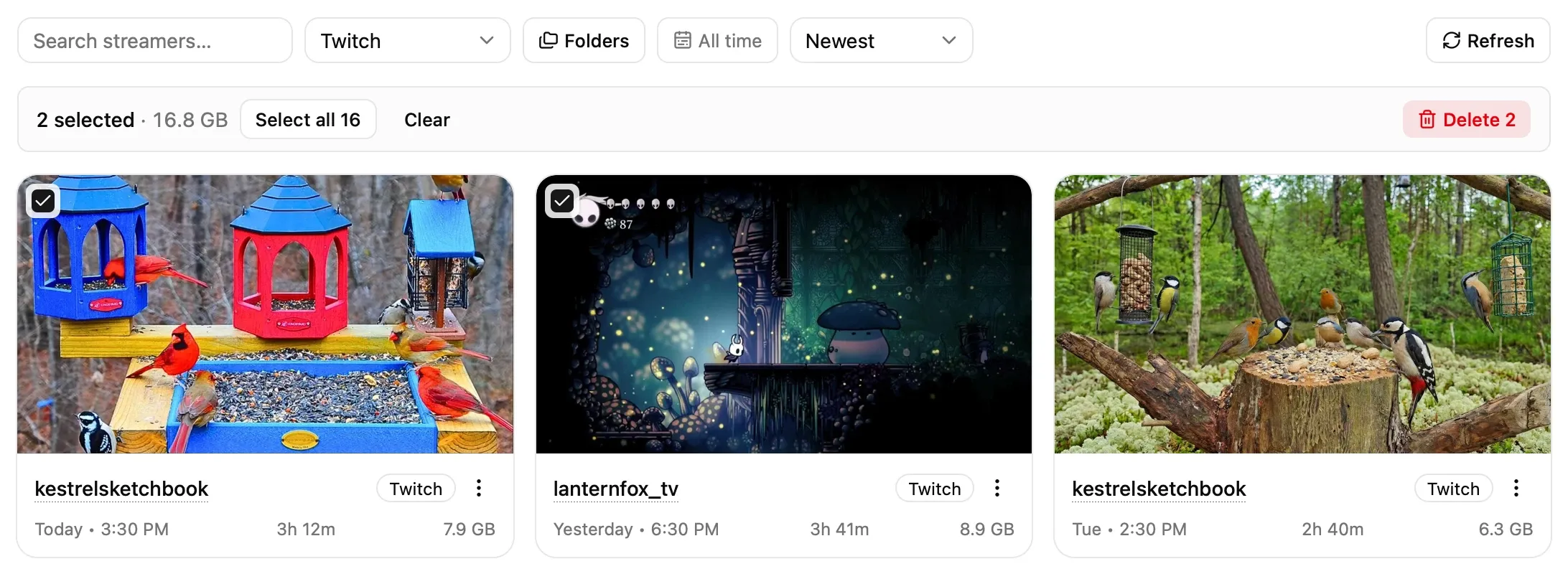
The VOD Archive page lists every recording, newest first. Type in Search streamers to narrow it to one name, pick a platform, or choose a date range. Sort by newest, oldest, largest or longest to find the four-hour marathon or the files taking the most space.
Select several recordings to delete them together, which is how a full disk gets cleared in a minute rather than an afternoon.
See what’s in it before you open it
Every card has a thumbnail. Move the cursor across it and it previews the broadcast from start to finish, so you can find the right stream without playing it.
A recording’s details panel shows what the card can’t:
- Stream titles, with each change the streamer made during the broadcast.
- A contact sheet, a grid of frames from start to end. Click it for full size.
- The timeline: when it started and ended, and how long it ran, including any stretch spent reconnecting.
- Where it is, with a button to reveal the folder and a link to the streamer’s channel.
Watch in the app
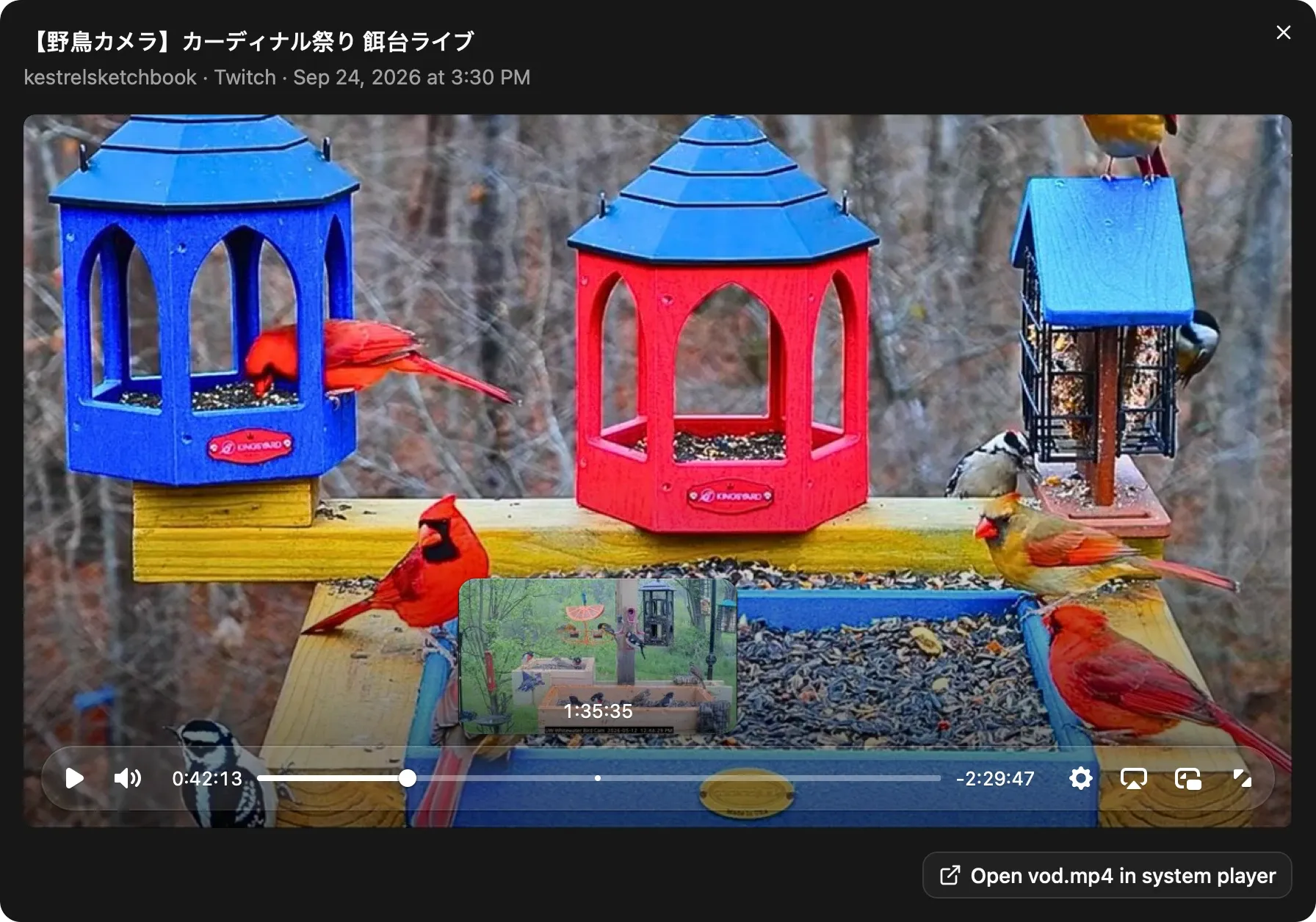
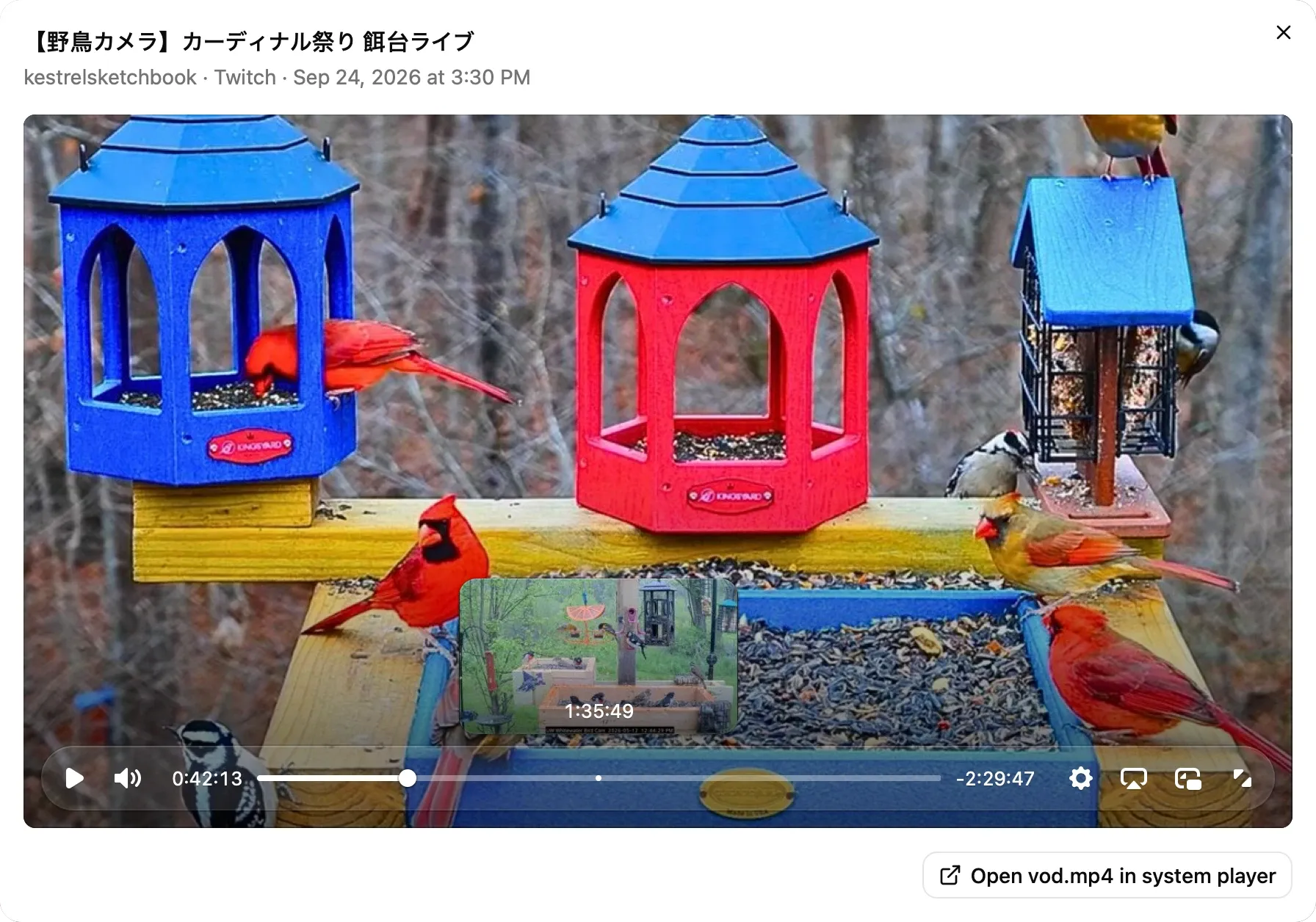
Play opens the recording in the built-in player, with a preview above the seek bar as you scrub. You can make your own player, such as VLC, the default instead.
Merge the parts
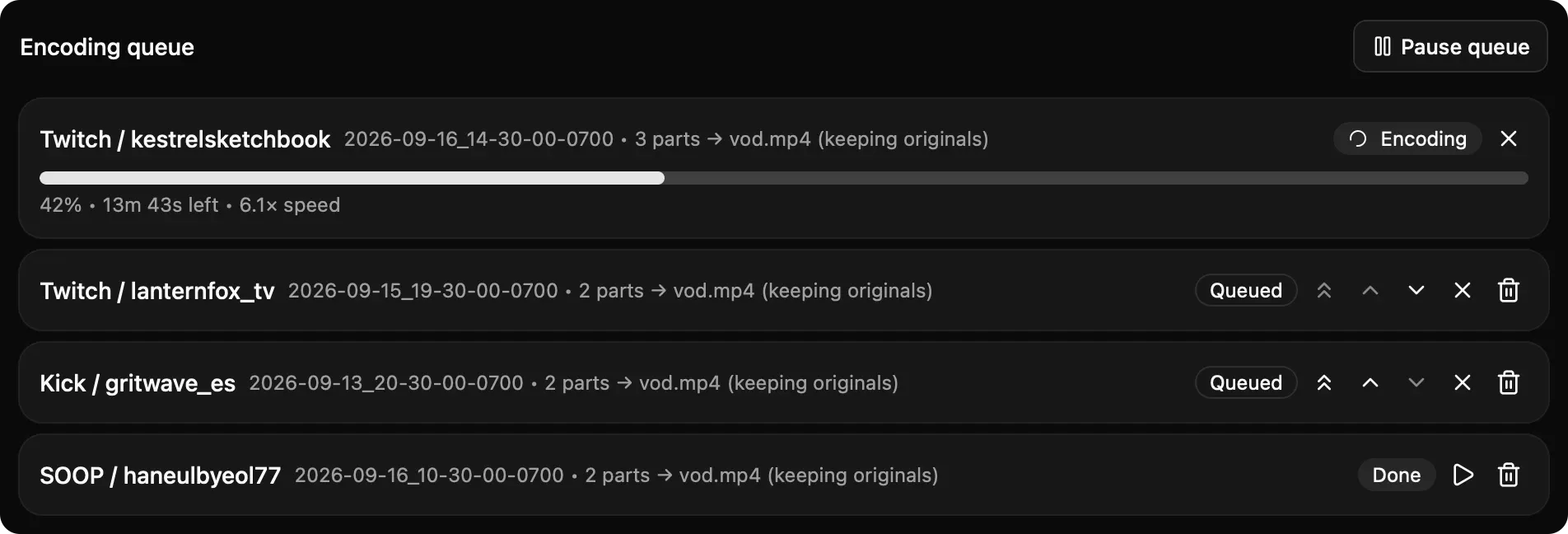
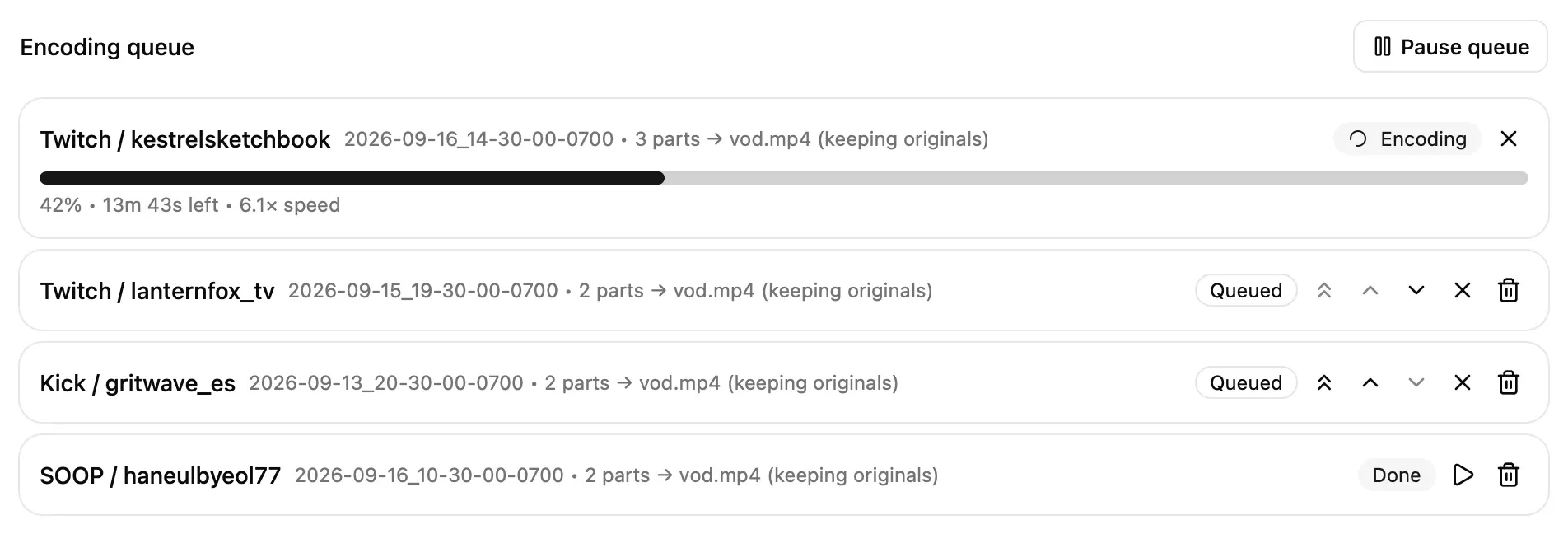
Some broadcasts come out as several files, for example when the stream changed resolution partway through. Merge parts… in a recording’s menu joins them into one file. Merges wait on the Encoding page and run one at a time; you can pause the queue, cancel a job or retry one.
Recordings on another disk
Live recording works best on a fast local disk. To keep the archive somewhere bigger, set an archive folder in Settings → Files, such as an external drive or a NAS share: each recording moves there once it’s finished. Add an old drive as an extra folder and its recordings join the list, read-only.
The app warns you when a recording folder runs low on space, at 20 GB free by default. For how much space to plan for, see how much disk space stream recordings need.
Why keep your own archive
Platforms delete past broadcasts on their own schedule, and many never keep them at all: see how long each platform keeps VODs. A recording on your disk stays until you delete it. The archive works the same for all 56 platforms VodLabs Recorder supports, so a Twitch stream, a TikTok live and a SOOP broadcast sit side by side.